I’m going to explain how I synchronize my data across all my devices (phone, computers, etc.). This guide is particularly aimed at iCloud or other proprietary cloud users who want to regain some control over their personal data.
I’ve been a Nextcloud user for several years now, and I want to share how I use it daily. Nextcloud is an excellent open-source, self-hosted alternative that allows you to sync files, notes, photos, and much more.
Installing Nextcloud on a Linux Server
To install it on my Linux server, I keep it simple: I use Docker Compose. Here’s my basic docker-compose.yml file:
services:
  nc:
    image: nextcloud:apache
    user: "root"
    environment:
      - POSTGRES_HOST=db
      - POSTGRES_PASSWORD=nextcloud
      - POSTGRES_DB=nextcloud
      - POSTGRES_USER=nextcloud
      - REDIS_HOST=redis
    ports:
      - 4080:80
    restart: always
    volumes:
      - ./data:/var/www/html
    depends_on:
      - redis
      - db

  db:
    image: postgres:15-alpine
    environment:
      - POSTGRES_PASSWORD=nextcloud
      - POSTGRES_DB=nextcloud
      - POSTGRES_USER=nextcloud
    restart: always
    volumes:
      - ./db:/var/lib/postgresql/data
    expose:
      - 5432

  redis:
    image: redis:alpine
    restart: always
    volumes:
      - ./redis:/data
    expose:
      - 6379
I added Redis because I find it makes the application significantly faster thanks to caching, but it’s clearly not mandatory. My Nextcloud instance ran without issues on a 2017 Raspberry Pi for several months!
Mobile and Desktop Clients
I then install the mobile client (Android/iOS) and the desktop client (Windows, macOS, Linux).
On Mobile
It’s important to go to the Auto Upload section to choose which folders will be automatically sent to your Nextcloud instance.
By default, only automatic photo sync is enabled. If you want to sync another folder (for example, documents), you need to define a custom folder via the three-dot menu in the top right.
Personally, I don’t use this feature much: I manually upload files when I need them.
On Desktop
There’s very little configuration needed: just choose the local directory that will be synced with Nextcloud.
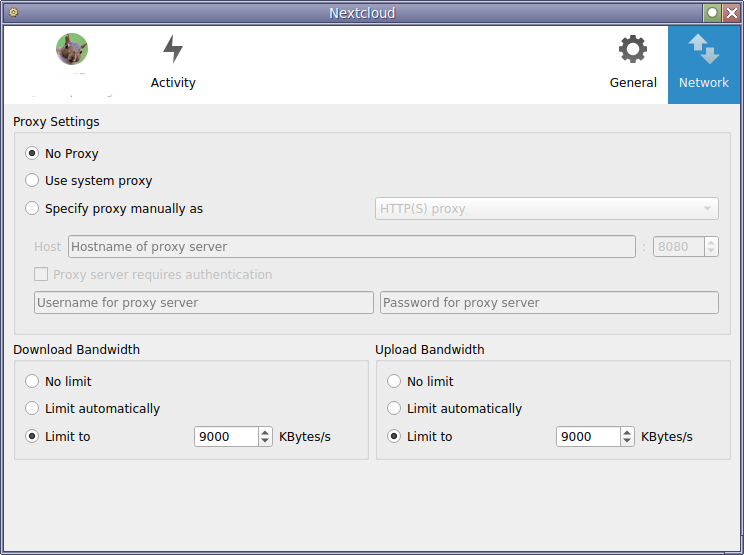
Just remember to go to the connection settings and disable bandwidth limitations (upload/download) to prevent sync from being too slow.
Integration with Other Self-Hosted Services
Nextcloud quickly becomes the central hub of my self-hosted ecosystem. Here’s how it interacts with my other tools.
1. PhotoPrism for Photo/Video Management
Nextcloud isn’t the most efficient for managing a large photo and video library. For that, PhotoPrism is one of the best open-source applications.
(The Immich alternative also looks excellent, but I haven’t tested it yet.)
PhotoPrism has a limitation: its mobile app for automatic sync is paid. So I use Nextcloud as an intermediary to send my photos.
How? Very simply: in PhotoPrism’s docker-compose.yml, I mount the photos volume directly from the Nextcloud folder where phone uploads arrive.
services:
  photoprism:
    image: photoprism/photoprism
    restart: always
    volumes:
      - /path/to/nextcloud/data/sepiropht/files/InstantUpload:/photoprism/originals  # Folder where Nextcloud stores auto uploads
    # ... other configurations (MariaDB, etc.)
It works great! Photos uploaded via the Nextcloud mobile app land directly in PhotoPrism for indexing and viewing.
2. Joplin for Notes
I use Joplin for all my notes (Markdown, with optional encryption).
To sync Joplin via Nextcloud, just go to Tools > Options > Synchronization and configure:
- Nextcloud WebDAV URL:
https://nextcloud.yourdomain.com/remote.php/dav/files/yourusername/
(Optionally, add a subfolder like /Joplin/ at the end for organization.)
Then enter your Nextcloud username and password.
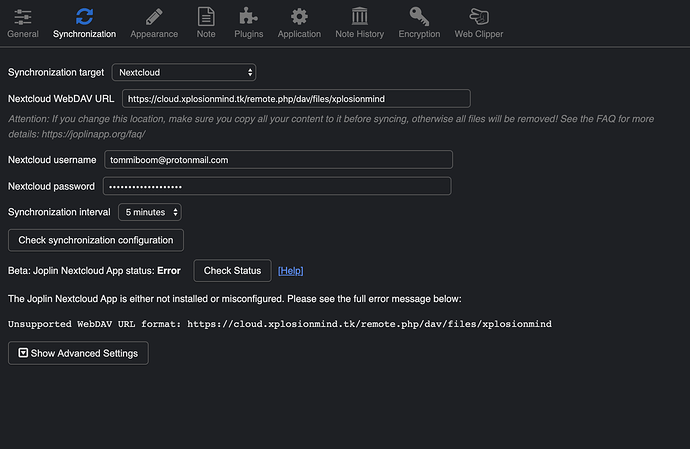
And that’s it: Joplin uses Nextcloud as a sync backend.
3. Floccus for Browser Bookmarks
I also use Floccus to synchronize my browser bookmarks across all my devices. Floccus is an open-source browser extension that can sync bookmarks using Nextcloud’s WebDAV interface.
To set it up:
- Install the Floccus extension in your browser (available for Chrome, Firefox, and Edge)
- Go to the Floccus options and add a new sync configuration
- Select “Nextcloud” as the provider
- Enter your Nextcloud WebDAV URL:
https://nextcloud.yourdomain.com/remote.php/dav/files/yourusername/ - Add your Nextcloud username and password
Floccus will then keep all your bookmarks synchronized across all your browsers and devices, giving you complete control over your bookmark data.
Conclusion
With this setup, Nextcloud becomes the heart of my multi-device synchronization, while remaining 100% under my control. No more need to depend on iCloud or Google Drive for basic files, notes, or photos.